Commit 1699502002
Unsigned
Layout: unified · split
docs/.vitepress/configs/constants.ts −3
| @@ -81,7 +81,6 @@ export const sidebar: DefaultTheme.Sidebar = [ | ||
| 81 | 81 | collapsed: true, |
| 82 | 82 | items: [ |
| 83 | 83 | { text: 'Disc Ripping', link: '/guides/anime/discrip' }, |
| 84 | { text: 'Network Streaming', link: '/guides/anime/ns' } | |
| 85 | 84 | ] |
| 86 | 85 | }, |
| 87 | 86 | { |
| @@ -101,8 +100,6 @@ export const sidebar: DefaultTheme.Sidebar = [ | ||
| 101 | 100 | text: 'Music', |
| 102 | 101 | collapsed: true, |
| 103 | 102 | items: [ |
| 104 | { text: 'Echo', link: '/guides/music/echo' }, | |
| 105 | { text: 'FB2K Synced Lyrics', link: '/guides/music/fb2klyrics' }, | |
| 106 | 103 | { text: 'Transcoding Audio', link: '/guides/music/transcoding' } |
| 107 | 104 | ] |
| 108 | 105 | }, |
docs/guides/anime/ns.md deleted −29
| @@ -1,29 +0,0 @@ | ||
| 1 | --- | |
| 2 | title: Network Stream | |
| 3 | customDescription: Stream video files through DDL, IRC, and Torrent. Enjoy seamless online video streaming! | |
| 4 | og: | |
| 5 | image: https://i.wotaku.wiki/f/guide.png | |
| 6 | --- | |
| 7 | ||
| 8 | ## DDL | |
| 9 | The basic process: | |
| 10 | ||
| 11 | :::steps | |
| 12 | 1. Copy the download link | |
| 13 | 2. Put it in the stream button | |
| 14 | ::: | |
| 15 | ||
| 16 | You can't play videos from some sources like Google drive, Mega etc. For this example, we will use [Tokyo Insider](https://www.tokyoinsider.com/). | |
| 17 | ||
| 18 | <div class="video_wrapper"><iframe src="https://youtube.com/embed/1dsTb8YoNDM" frameborder="0" allowfullscreen></iframe></div> | |
| 19 | ||
| 20 | ## IRC | |
| 21 | When you start the download, a file will be created in the download destination. If you open the file while it is still downloading, you can play the downloaded sections. Technically, you are only able to play the parts that have been downloaded, so you cannot skip ahead and play the non-downloaded parts. This method works because the downloader downloads the file sequentially. | |
| 22 | ||
| 23 | ||
| 24 | ## Torrent | |
| 25 | You can use [qBittorrent](https://www.qbittorrent.org/) to stream a video you're currently downloading. For this, check the "**Download in sequential order**" and go to the containing folder. Now open the file and it will play as more chunks are downloaded. | |
| 26 | ||
| 27 |  | |
| 28 | ||
| 29 | [TorrServer](https://github.com/YouROK/TorrServer) & [WebTorrent](https://github.com/webtorrent/webtorrent-cli) can also be used to stream torrents. | |
| \ No newline at end of file | ||
docs/guides/index.md −9
| @@ -19,9 +19,6 @@ og: | ||
| 19 | 19 | <Card title="Disc Ripping" href="/guides/anime/discrip"> |
| 20 | 20 | Guide on how to rip Discs and conversions to MKV and ISO formats |
| 21 | 21 | </Card> |
| 22 | <Card title="Network Stream" href="/guides/anime/ns"> | |
| 23 | Stream video files through DDL, IRC, and Torrent | |
| 24 | </Card> | |
| 25 | 22 | </Deck> |
| 26 | 23 | |
| 27 | 24 | ## Manga |
| @@ -53,12 +50,6 @@ og: | ||
| 53 | 50 | ## Music |
| 54 | 51 | |
| 55 | 52 | <Deck> |
| 56 | <Card title="Echo" href="/guides/music/echo"> | |
| 57 | How to set up and use Echo | |
| 58 | </Card> | |
| 59 | <Card title="Synced Lyrics in FB2K" href="/guides/music/fb2klyrics"> | |
| 60 | View and add synced lyrics in Foobar2000 | |
| 61 | </Card> | |
| 62 | 53 | <Card title="Transcoding Audio" href="/guides/music/transcoding"> |
| 63 | 54 | Basic guide for transcoding audio files |
| 64 | 55 | </Card> |
docs/guides/music/echo.md deleted −388
| @@ -1,388 +0,0 @@ | ||
| 1 | --- | |
| 2 | title: Echo | |
| 3 | customDescription: Guide on how to use echo. | |
| 4 | outline: [1,2] | |
| 5 | og: | |
| 6 | image: https://i.wotaku.wiki/f/echo.png | |
| 7 | --- | |
| 8 | ||
| 9 | [**Echo**](https://github.com/brahmkshatriya/echo) is an extension-based music player app. It can play music from streaming websites (e.g., YouTube, Spotify, Deezer) and self-hosted servers (e.g., Jellyfin). Echo also supports external lyrics and music tracking (e.g., Last.fm). | |
| 10 | ||
| 11 | ||
| 12 | ||
| 13 | # Setup | |
| 14 | ||
| 15 | ## Installing Echo | |
| 16 | 1. Visit the [**Echo Nightly Builds**](https://github.com/itsmechinmoy/echo-nightly) page and download the latest ZIP file (usually the first one listed). | |
| 17 | 2. Extract the ZIP file using your file manager. If extraction isn't supported, consider using an app like [MiXplorer](https://forum.xda-developers.com/showpost.php?p=23109280). | |
| 18 | 3. Inside the extracted folder, locate the `.apk` file. | |
| 19 | 4. Open the `.apk` file to begin installation. If prompted, allow installation from unknown sources in your device settings. | |
| 20 | 5. Once installed, launch Echo and proceed to install extensions as needed (see below). | |
| 21 | ::: info | |
| 22 | To install apps from outside the Play Store, you may need to enable the "Unknown Sources" option in your device settings. | |
| 23 | ::: | |
| 24 | ||
| 25 | ## Installing Extensions | |
| 26 | ||
| 27 | Echo supports two types of extension files: | |
| 28 | - `.eapk` files: Installed automatically by Echo. | |
| 29 | - `.apk` files: Must be installed manually, like any other Android app. | |
| 30 | ||
| 31 | Follow the steps below to install extensions using either a link/code or by downloading files directly. | |
| 32 | ||
| 33 | ::: tabs | |
| 34 | ||
| 35 | == Link / Code | |
| 36 | ||
| 37 | **Quick Add via Code or Link** | |
| 38 | ||
| 39 | 1. **Open the Echo app.** | |
| 40 | 2. Tap the :material-symbols-stream-rounded: **Extension** icon in the app. | |
| 41 | 3. Tap :material-symbols-add-circle-outline-rounded: **Add Extension**. | |
| 42 | 4. Enter a shortcode or paste a URL from the table below. | |
| 43 | 5. Tap **Add**. | |
| 44 | 6. A list of available extensions will appear. | |
| 45 | 7. Select the extensions you want to install. | |
| 46 | 8. Tap **Add** again. | |
| 47 | 9. For each extension, the **Extension Installer** will appear. Tap **Install** to complete. | |
| 48 | ||
| 49 | | Extension | Code | Direct Link | | |
| 50 | |-------------------|-------------|----------------------------------------------------------------------------------------------| | |
| 51 | | All-in-one :s: | `extension` | [All-in-one](https://raw.githubusercontent.com/itsmechinmoy/echo-extensions/main/echo_extensions.json) | | |
| 52 | | EchoDown | `echodown` | [EchoDown](https://gist.githubusercontent.com/LuftVerbot/81f8748205dc7fc419269c59e7cffdb1/raw/993b221af28a01a6380fd36692935b670a18ee43/echo_extensions.json) | | |
| 53 | ||
| 54 | <div class="video_wrapper"><iframe src="https://www.youtube.com/embed/l9WsxYekKfY" frameborder="0" allowfullscreen></iframe></div> | |
| 55 | ||
| 56 | == File | |
| 57 | ||
| 58 | **Manual Install via File** | |
| 59 | ||
| 60 | 1. Go to the [Repositories](#extension-repositories) tab below and choose a repository for the extension you want. | |
| 61 | 2. Download the latest `.apk` or `.eapk` file from the repository link. | |
| 62 | 3. Open the Echo app. | |
| 63 | 4. Tap the :material-symbols-stream-rounded: **Extension** icon. | |
| 64 | 5. Tap :material-symbols-add-circle-outline-rounded: **Add Extension**, then select **File**. | |
| 65 | 6. Tap **Add** and select the downloaded `.apk` or `.eapk` file. | |
| 66 | 7. The **Extension Installer** will appear. Tap **Install** to finish. | |
| 67 | ||
| 68 | <div class="video_wrapper"><iframe src="https://www.youtube.com/embed/QTP9PruoH8c" frameborder="0" allowfullscreen></iframe></div> | |
| 69 | ::: | |
| 70 | ||
| 71 | --- | |
| 72 | ||
| 73 | ### Extension Repositories | |
| 74 | ||
| 75 | Below are official and community repositories for various types of extensions. Use these links to download extension files or find more information. | |
| 76 | ||
| 77 | ::: tabs | |
| 78 | ||
| 79 | == Music | |
| 80 | ||
| 81 | | Developer | Extension | Description | | |
| 82 | |------------------|--------------------------------------------------------------------------------------------|---------------------------------------------------------------------------------------------------------------| | |
| 83 | | Abhishek | [YouTube](https://github.com/Abhishek890/Eco-Youtube_Music/releases) | Play and browse music from YouTube and YouTube Music, often works without login. | | |
| 84 | | ^^ | [Saavn](https://github.com/Abhishek890/Echo-Saavn-Extension/releases) | Listen to streams from Saavn on Echo. | | |
| 85 | | BitFable | [DAB](https://github.com/BitFable/echo-dab-yeet-extension/releases) | Play and browse music from DAB Music on Echo. | | |
| 86 | | brahmkshatriya | [Spotify](https://github.com/brahmkshatriya/echo-spotify-extension/releases) | Stream music from Spotify. Requires login for full access. | | |
| 87 | | LuftVerbot | [Deezer](https://github.com/LuftVerbot/echo-deezer-extension/releases) | Access and stream music from Deezer. Login required to browse and play tracks. | | |
| 88 | | Secozzi | [Jellyfin](https://github.com/Secozzi/echo-jellyfin-extension/releases) | Connect to your Jellyfin server to stream your personal music library. | | |
| 89 | ||
| 90 | == Radio | |
| 91 | ||
| 92 | | Developer | Extension | Description | | |
| 93 | |------------------|--------------------------------------------------------------------------------------------|---------------------------------------------------------------------------------------------------------------| | |
| 94 | | m-tki | [iHeartRadio](https://github.com/m-tki/echo-iheart-extension/releases) | Play music from iHeartRadio on Echo. | | |
| 95 | | ^^ | [Radio Browser](https://github.com/m-tki/echo-radiobrowser-extension/releases) | Play and browse radio from Radio Browser on Echo. | | |
| 96 | | ^^ | [TuneIn](https://github.com/m-tki/echo-tunein-extension/releases) | Listen to live radio stations and streams via TuneIn. | | |
| 97 | ||
| 98 | == Tracking | |
| 99 | ||
| 100 | | Developer | Extension | Description | | |
| 101 | |--------------|------------------------------------------------------------------------------------------------|---------------------------------------------------------------------------------------------------------------| | |
| 102 | | rebelonion | [Last.fm](https://github.com/rebelonion/echo-lastfm/releases) | Scrobble your listening activity to Last.fm for music tracking and recommendations. | | |
| 103 | ||
| 104 | == Lyrics | |
| 105 | ||
| 106 | | Developer | Extension | Description | | |
| 107 | |--------------|------------------------------------------------------------------------------------------------|---------------------------------------------------------------------------------------------------------------| | |
| 108 | | rebelonion | [Lyrics Translator](https://github.com/rebelonion/echo-lyrics-translator/releases) | View and translate song lyrics in real time while listening. | | |
| 109 | | shub39 | [Genius](https://github.com/shub39/echo-genius-extension/releases) | Fetch lyrics and annotations from Genius for your currently playing song. | | |
| 110 | | ^^ | [Kugou](https://github.com/shub39/echo-kugou-extension/releases) | Get lyrics from Kugou, including support for Chinese and international tracks. | | |
| 111 | | ^^ | [LRCLIB](https://github.com/shub39/echo-lrclib-extension/releases) | Access a large open-source lyrics database (LRCLIB) for synced and unsynced lyrics. | | |
| 112 | | ^^ | [MusixMatch](https://github.com/shub39/echo-musixmatch-extension/releases) | Display synced lyrics from MusixMatch, supporting many languages and artists. | | |
| 113 | ||
| 114 | == Others | |
| 115 | ||
| 116 | | Developer | Extension | Description | | |
| 117 | |------------------|--------------------------------------------------------------------------------------------|---------------------------------------------------------------------------------------------------------------| | |
| 118 | | brahmkshatriya | [Cineby](https://github.com/brahmkshatriya/echo-cineby-extension/releases) | Watch and manage movies and TV shows directly within Echo. | | |
| 119 | | ^^ | [Discord RPC](https://github.com/brahmkshatriya/echo-discord/releases) | Show your currently playing music as a status on Discord using Rich Presence. | | |
| 120 | | LuftVerbot | [Echodown](https://github.com/LuftVerbot/echo-echodown-extension/releases) | Download music from supported streaming services for offline listening. | | |
| 121 | | m-tki | [IPTV](https://github.com/m-tki/echo-iptv-extension/releases) | Watch IPTV streams from IPTV-org on Echo. | | |
| 122 | | rebelonion | [ASMR One](https://github.com/rebelonion/echo-asmr-one/releases) | Stream relaxing ASMR audio content from ASMR One. | | |
| 123 | ||
| 124 | ::: | |
| 125 | ||
| 126 | ## Updating Extensions | |
| 127 | ||
| 128 | - Echo automatically checks for extension updates every 6 hours. | |
| 129 | - To check for updates manually: | |
| 130 | 1. Go to :material-symbols-settings-rounded: **Settings**. | |
| 131 | 2. Tap :material-symbols-stream-rounded: **Extension**. | |
| 132 | 3. Tap :material-symbols-sync-rounded: to check for updates. | |
| 133 | - If an update is available, you will be prompted to install it. | |
| 134 | - If the app still shows an extension as out of date, try restarting Echo. | |
| 135 | ||
| 136 | ## Adding your music accounts | |
| 137 | ||
| 138 | To enjoy personalized features like playlists, recommendations, and streaming, you’ll need to link your music service accounts to Echo. Here’s how to get started: | |
| 139 | ||
| 140 | 1. Open :material-symbols-settings-rounded: **Settings** in Echo. | |
| 141 | 2. Tap :material-symbols-stream-rounded: **Extension**. | |
| 142 | 3. Select the music streaming extension you want to connect (for example, Spotify, YouTube, or Deezer). | |
| 143 | 4. Tap :material-symbols-login-rounded: **Login** and follow the on-screen instructions to sign in. | |
| 144 | ||
| 145 | Once your account is linked, you’ll have access to your personal music library and streaming features, depending on the service. | |
| 146 | ||
| 147 | ## How to Play Music in Echo | |
| 148 | ||
| 149 | Echo works as an offline music player by default, letting you play music stored on your device. To stream music from online services, you’ll need to install [music extensions](#installing-extensions). | |
| 150 | ||
| 151 | To play music from a streaming service: | |
| 152 | ||
| 153 | 1. Tap the :material-symbols-stream-rounded: **Extension** icon. | |
| 154 | 2. Choose a music streaming extension from the list. | |
| 155 | ||
| 156 | Depending on the extension you select: | |
| 157 | - Some services (like YouTube Music) let you browse and play songs without logging in. | |
| 158 | - Others (like Spotify) may let you browse playlists and songs, but require you to log in before you can play anything. | |
| 159 | - Some (like Deezer) may not show any content until you log in. | |
| 160 | ||
| 161 | ::: info Unified Extension | |
| 162 | With the Unified Extension, you can browse all your installed music services from the top bar. In your library, you can create playlists and add songs from multiple services in one place. | |
| 163 | ::: | |
| 164 | ||
| 165 | ::: tip Audio Glossary | |
| 166 | New to audio terms? Check out our [**audio glossary**](/glossary/audio) to learn the basics! | |
| 167 | ::: | |
| 168 | ||
| 169 | --- | |
| 170 | ||
| 171 | ||
| 172 | ||
| 173 | # Essential Information & Troubleshooting for Echo | |
| 174 | ||
| 175 | ## 1. Account Safety & Spotify Usage | |
| 176 | ||
| 177 | ### Spotify Extension Risks | |
| 178 | ||
| 179 | ::: warning Important | |
| 180 | The Spotify extension violates Spotify’s Terms of Service. Using it may result in your Spotify account being suspended, often in waves. | |
| 181 | ::: | |
| 182 | ||
| 183 | ::: info Responsibility | |
| 184 | The Echo team is not responsible for any account suspensions. If your account is suspended, you must open email about your account suspension and contact Spotify Support directly from there (it will open a live chat). | |
| 185 | ::: | |
| 186 | ||
| 187 | ### False Suspension Warnings | |
| 188 | ||
| 189 | Sometimes Echo may incorrectly report your account as suspended. To check: | |
| 190 | - Look for an email from Spotify with the subject "**Notice under Spotify Terms and Conditions of Use**". | |
| 191 | - If you haven’t received such an email, log out and log back in to Echo. This usually resolves the issue. | |
| 192 | ||
| 193 | ### Safer Usage: Use an Alternate Account | |
| 194 | ||
| 195 | To protect your main Spotify account: | |
| 196 | - Create and use an alternate (alt) Spotify account for Echo. | |
| 197 | - Transfer your playlists, albums, and artists using the [**transfer guide**](#transferring-playlists). | |
| 198 | - Or, add your alt account as a collaborator on your playlists: | |
| 199 | 1. Open the official Spotify app or website. | |
| 200 | 2. Go to one of your own playlists. | |
| 201 | 3. Click the :ic-baseline-person-add: **Invite Collaborators** button. | |
| 202 | 4. Copy the collaboration link and open it while logged into your alt account. | |
| 203 | ||
| 204 | ## 2. Managing Your Music & Echo Features | |
| 205 | ||
| 206 | ### Blacklisting Folders | |
| 207 | ||
| 208 | Echo scans all your music folders for offline playback. To exclude a folder: | |
| 209 | - Go to :material-symbols-settings-rounded: **Settings** → :material-symbols-stream-rounded: **Extension** → :material-symbols-files-outline: **Offline**. | |
| 210 | - Tap **Blacklist Folders** and select folders you want to exclude. | |
| 211 | ||
| 212 | ### Changing Lyrics Provider | |
| 213 | ||
| 214 | Echo supports multiple lyrics sources. To switch: | |
| 215 | 1. Play a song and tap **Lyrics**. | |
| 216 | 2. Scroll up to see the :material-symbols-queue-music-rounded: Music Provider "Logo". | |
| 217 | 3. Tap the logo and select your preferred lyrics provider. | |
| 218 | ::: info | |
| 219 | The last selected provider becomes the default. | |
| 220 | ::: | |
| 221 | ||
| 222 | <div class="video_wrapper"><iframe src="https://www.youtube.com/embed/t0lBUbf4HLs" frameborder="0" allowfullscreen></iframe></div> | |
| 223 | ||
| 224 | ### Downloading Music | |
| 225 | ||
| 226 | To download songs: | |
| 227 | 1. Install the [EchoDown extension](#installing-extensions). | |
| 228 | 2. Open any song/album you want to download. | |
| 229 | 3. Press :material-symbols-more-horiz: and select :material-symbols-download-for-offline-outline-rounded: **Download**. | |
| 230 | ||
| 231 | - Track download progress in :material-symbols-settings-rounded: **Settings** → :material-symbols-download-for-offline-outline-rounded: **Downloads**. | |
| 232 | - Find completed downloads in :material-symbols-files-outline: **Offline**. If you can't find this section, tap :material-symbols-stream-rounded: **Extension** and select :material-symbols-files-outline: **Offline**. | |
| 233 | ||
| 234 | <div class="video_wrapper"><iframe src="https://www.youtube.com/embed/-TamZ_J7NmA" frameborder="0" allowfullscreen></iframe></div> | |
| 235 | ||
| 236 | ### Transferring Playlists | |
| 237 | ||
| 238 | If you use an alternate Spotify account, transfer your data as follows: | |
| 239 | ||
| 240 | ### Exporting Playlists as CSV | |
| 241 | ||
| 242 | - Visit [**Exportify**](https://exportify.net) | |
| 243 | - Log in with Spotify | |
| 244 | - Click "**Export**" beside each playlist | |
| 245 | - Save the CSV files | |
| 246 | ||
| 247 | ### Account To Account Playlist Transfer | |
| 248 | ||
| 249 | ::: tabs | |
| 250 | ||
| 251 | == Trikatuka | |
| 252 | ||
| 253 | To transfer playlists between Spotify accounts using Trikatuka: | |
| 254 | ||
| 255 | 1. Go to [Trikatuka](https://trikatuka.aknakn.eu/#/). | |
| 256 | 2. Log in with your source Spotify account. | |
| 257 | 3. Select the playlists you want to transfer. | |
| 258 | 4. Log out and log in with your destination Spotify account. | |
| 259 | 5. Import the previously selected playlists into the new account. | |
| 260 | ||
| 261 | == SpotMyBackup | |
| 262 | ||
| 263 | To transfer playlists using SpotMyBackup: | |
| 264 | ||
| 265 | 1. Visit [SpotMyBackup](http://www.spotmybackup.com/). | |
| 266 | 2. Log in with your source Spotify account. | |
| 267 | 3. Click "Backup" to export your playlists as a file. | |
| 268 | 4. Log out and log in with your destination Spotify account. | |
| 269 | 5. Click "Restore" and upload the backup file to import your playlists. | |
| 270 | ||
| 271 | ||
| 272 | == SpotifyMigrator (Advanced) | |
| 273 | ||
| 274 | >[!INFO] | |
| 275 | This guide is more advanced than the other two and requires some more time to setup and configure. This guide is here as an alternative in case the other two no longer work. For more details and troubleshooting, see the [official documentation](https://github.com/JustSxm/SpotifyMigrator#readme). | |
| 276 | ||
| 277 | [SpotifyMigrator](https://github.com/JustSxm/SpotifyMigrator) is an application to help you transfer your data from an account to another account. It requires some technical setup. | |
| 278 | ||
| 279 | **Steps:** | |
| 280 | ||
| 281 | 1. **Spotify App Configuration** | |
| 282 | - Create an app on the [Spotify Developer Website](https://developer.spotify.com/dashboard/applications). | |
| 283 | - Fill out the **App Name**, **App Description** and **Redirect URI**. For the **Redirect URI**, use `http://localhost:5009/api/Spotify` | |
| 284 | - Click on **Settings**, then **User Management**. Add the email of the other account you are **not currently logged in with** (new or old) to give it access to the application. Once you filled out the details, click **Add User**. | |
| 285 | ||
| 286 | 2. **Migrator App Configuration** | |
| 287 | - Download the [Release](https://github.com/JustSxm/SpotifyMigrator/releases). | |
| 288 | - Open `wwwroot/appsettings.json`. | |
| 289 | - Put the **Client ID** of the application you just created (found in **Basic Information**). | |
| 290 | - If you are using the application for migrating your liked songs into **multiple playlists**, put the **ID** of a playlist where all the songs migrated will be put. If you don't need it, just create a **temporary playlist** and delete it after using the application. | |
| 291 | - Once done, save and exit. | |
| 292 | - Now open `appsettings.json`. | |
| 293 | - Put the **Client ID & Client Secret** of the application you just created (found in **Basic Information**). | |
| 294 | ||
| 295 | 3. **Running The Migration Tool** | |
| 296 | - If you are on Windows, simply open `SpotifyMigrator.Server.exe`. Then visit `localhost:3000` on your browser. | |
| 297 | - If you are on Linux or Mac, simply run `dotnet SpotifyMigrator.Server.dll` in the command line | |
| 298 | >[!INFO] | |
| 299 | You will need [dotnet](https://dotnet.microsoft.com/en-us/download) installed to run the application on Linux or Mac. | |
| 300 | - Then visit `localhost:3000` on your browser. | |
| 301 | ||
| 302 | 4. **Demo:** | |
| 303 | 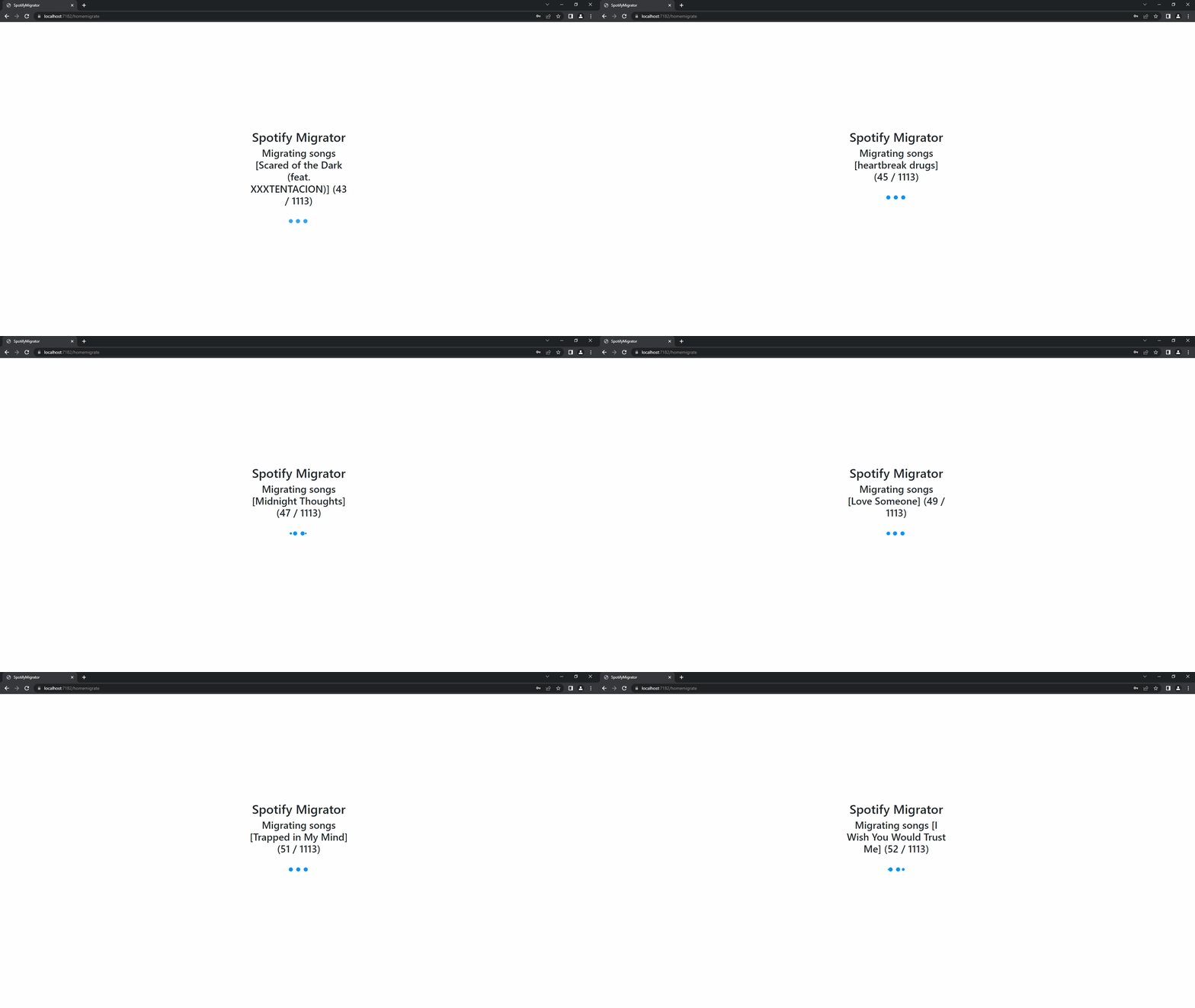 | |
| 304 | ||
| 305 | ::: | |
| 306 | ||
| 307 | ## 3. Troubleshooting Common Issues | |
| 308 | ||
| 309 | ### General Issues | |
| 310 | ||
| 311 | #### Extension Update Problems | |
| 312 | ||
| 313 | - Some ISPs block GitHub Raw/Gist URLs, which can prevent extension updates. | |
| 314 | - **Solution:** Use a [VPN](/guides/tech/adblock#vpn) to bypass these restrictions. | |
| 315 | ||
| 316 | #### Extensions Out of Date | |
| 317 | ||
| 318 | - Update your extensions ([see instructions](#updating-extensions)). | |
| 319 | - Force stop the app and re-open Echo. | |
| 320 | ||
| 321 | --- | |
| 322 | ||
| 323 | ### Deezer Issues | |
| 324 | ||
| 325 | #### Deezer Not Available in Your Country | |
| 326 | ||
| 327 | - Use a [VPN](/guides/tech/adblock#vpn) to create your Deezer account. | |
| 328 | - Afterward, you can use a proxy server for access: | |
| 329 | - Go to :material-symbols-settings-rounded: **Settings** → :material-symbols-stream-rounded: **Extension** → **Deezer** → **Use Proxy** and select a server. | |
| 330 | ||
| 331 | #### Null Error | |
| 332 | ||
| 333 | - Usually caused by network issues, a non-functional proxy, or incorrect login credentials. | |
| 334 | ||
| 335 | --- | |
| 336 | ||
| 337 | ### Downloading / EchoDown Issues | |
| 338 | ||
| 339 | #### Downloaded File Not Highest Quality | |
| 340 | ||
| 341 | - By default, EchoDown uses medium quality. | |
| 342 | - To change: :material-symbols-settings-rounded: **Settings** → :material-symbols-stream-rounded: **Extension** → **Misc** → **EchoDown** → **Download Quality** → select **Highest**. | |
| 343 | ||
| 344 | #### "open failed: ENOENT (No such file or directory)" | |
| 345 | ||
| 346 | - This happens if you move or delete the downloaded folder. | |
| 347 | - Fix: Move the folder back, or remove it from :material-symbols-download-for-offline-outline-rounded: **Downloads** and use :material-symbols-files-outline: **Offline** to play files. | |
| 348 | ||
| 349 | --- | |
| 350 | ||
| 351 | ### Spotify Issues | |
| 352 | ||
| 353 | #### Extension Outdated Despite Being Latest | |
| 354 | ||
| 355 | - Go to your [Spotify Personal Info Settings](https://www.spotify.com/account/profile/). | |
| 356 | - Change your "Country or region". | |
| 357 | ||
| 358 | #### "Oops! Something went wrong" | |
| 359 | ||
| 360 | - If you see this error while logging in, try using the password method instead of OTP. | |
| 361 | - If it persists, force close and reopen the app, then try again. | |
| 362 | ||
| 363 | #### Socket Closed | |
| 364 | ||
| 365 | - Force close and reopen Echo. | |
| 366 | - Or, switch to incognito mode in the extension and log back in: | |
| 367 | - Tap :material-symbols-account-circle-full: at the top right | |
| 368 | - Select :mdi-incognito: **Incognito** | |
| 369 | ||
| 370 | #### "Spotify stored token required" | |
| 371 | ||
| 372 | - Log out of the Spotify extension, force close Echo, reopen, and log back in. | |
| 373 | ||
| 374 | --- | |
| 375 | ||
| 376 | ### YouTube Music Issues | |
| 377 | ||
| 378 | ::: info | |
| 379 | The extension has recently been updated to fix all the errors users faced. As time goes, this part will be updated for any common error codes that pop up. | |
| 380 | ::: | |
| 381 | ||
| 382 | ### Discord RPC Issues | |
| 383 | ||
| 384 | ::: info | |
| 385 | There is a known issue, specifically with logging into the extension. You'll have to wait for an update that fixes this before you're able to use the RPC features again in Echo. | |
| 386 | ::: | |
| 387 | ||
| 388 | --- | |
docs/guides/music/fb2klyrics.md deleted −49
| @@ -1,49 +0,0 @@ | ||
| 1 | --- | |
| 2 | title: Synced Lyrics in Foobar2000 | |
| 3 | description: View and add synced lyrics in Foobar2000 | |
| 4 | og: | |
| 5 | image: https://i.wotaku.wiki/f/guide.png | |
| 6 | --- | |
| 7 | ||
| 8 | For this guide we will use OpenLyrics. You can also try [ESLyric](https://github.com/ESLyric/release). | |
| 9 | ||
| 10 | ## Adding OpenLyrics | |
| 11 | :::steps | |
| 12 | 1. [**Download**](https://www.foobar2000.org/components/view/foo_openlyrics) the OpenLyrics component. | |
| 13 | 2. Open `Foobar > File > Preferences` or click **CTRL + P**. | |
| 14 | ||
| 15 |  | |
| 16 | 3. Go to **Components** and click **Install**. | |
| 17 | ||
| 18 |  | |
| 19 | 4. Select the downloaded OpenLyrics component file and open. Then click **Apply** to load it and **OK** to restart the app. | |
| 20 | ||
| 21 |  | |
| 22 | 5. Then go to `Tools > OpenLyrics > Searching`. Click on Musixmatch in **Available sources**. Then **<<** to move it in the main section. Then select Musixmatch again and click **UP** to the top 3. Click **Apply**. | |
| 23 | ||
| 24 |  | |
| 25 | 6. Go to `Tools > OpenLyrics > Searching > Musixmatch`. Click **?** and then **Yes**. Hit **Apply**. | |
| 26 | ||
| 27 |  | |
| 28 | 7. Go to `Tools > OpenLyrics > Searching > Metadata tags`. Set **LYRICS** as value for both Unsynced and Synced lyrics | |
| 29 | ||
| 30 |  | |
| 31 | 8. Go to `Foobar > View > OpenLyrics Panel` | |
| 32 | ||
| 33 |  | |
| 34 | ::: | |
| 35 | ||
| 36 | Now play any song and the panel will show synced lyrics (if it's in the database) | |
| 37 | ||
| 38 |  | |
| 39 | ||
| 40 | details More Settings | |
| 41 | ||
| 42 | ## Saving synced lyrics as metadata | |
| 43 | Go to `Tools > OpenLyrics > Saving` and set Save method as **Save to tag** | |
| 44 | ||
| 45 |  | |
| 46 | ||
| 47 | ::: tip Tip | |
| 48 | You can also select multiple song and set synced lyrics for all of them by going to `Right click > OpenLyrics > Search for Lyrics` | |
| 49 | ::: | |
docs/music.md +2 −2
| @@ -347,7 +347,7 @@ The sources mentioned here are all digital, with their max qualities listed. Qua | ||
| 347 | 347 | ### Online |
| 348 | 348 | | Category | Links | |
| 349 | 349 | |------------|---------| |
| 350 | | **General** | [Echo](https://github.com/brahmkshatriya/echo) :s::and: [:help:](/guides/music/echo) ==echo== | | |
| 350 | | **General** | [Echo](https://github.com/brahmkshatriya/echo) :s::and: [:help:](https://echomusicdocs.vercel.app/docs/echo) ==echo== | | |
| 351 | 351 | | ^^ | [Revanced](https://revanced.app/) :and: [:src:](https://github.com/revanced) | |
| 352 | 352 | | ^^ | [Soundbound](https://soundbound.app/) :and::cs: | |
| 353 | 353 | | **YouTube** | [Harmony Music](https://github.com/anandnet/Harmony-Music) :and: | |
| @@ -429,7 +429,7 @@ The sources mentioned here are all digital, with their max qualities listed. Qua | ||
| 429 | 429 | | ^^ | [Discord Rich Presence Integration](https://github.com/s0hv/foo_discord_rich) [:help:](https://s0hv.github.io/foo_discord_rich/) [:alt:](https://github.com/realoksi/foobar2000-catbox) | |
| 430 | 430 | | ^^ | [Encoder Pack](https://www.foobar2000.org/encoderpack) | |
| 431 | 431 | | ^^ | [ESLyric](https://github.com/ESLyric/release) | |
| 432 | | ^^ | [OpenLyrics](https://www.foobar2000.org/components/view/foo_openlyrics) [:help:](/guides/music/fb2klyrics) | | |
| 432 | | ^^ | [OpenLyrics](https://www.foobar2000.org/components/view/foo_openlyrics) | | |
| 433 | 433 | | ^^ | [ReplayGain DSP](https://www.foobar2000.org/components/view/foo_dsp_replaygain) | |
| 434 | 434 | | Theme | [Georgia-ReBORN](https://github.com/TT-ReBORN/Georgia-ReBORN) | |
| 435 | 435 | | ^^ | [Eole](https://github.com/Ottodix/Eole-foobar-theme) | |
docs/public/ss/foobar/fb5_5.png deleted
Binary file not shown.
docs/public/ss/foobar/fbs1.png deleted
Binary file not shown.
docs/public/ss/foobar/fbs2.png deleted
Binary file not shown.
docs/public/ss/foobar/fbs3.png deleted
Binary file not shown.
docs/public/ss/foobar/fbs4.png deleted
Binary file not shown.
docs/public/ss/foobar/fbs5.png deleted
Binary file not shown.
docs/public/ss/foobar/fbs6.png deleted
Binary file not shown.
docs/public/ss/foobar/fbs7.png deleted
Binary file not shown.
docs/public/ss/foobar/fbsavesub.png deleted
Binary file not shown.